The Songs tab
What it's for
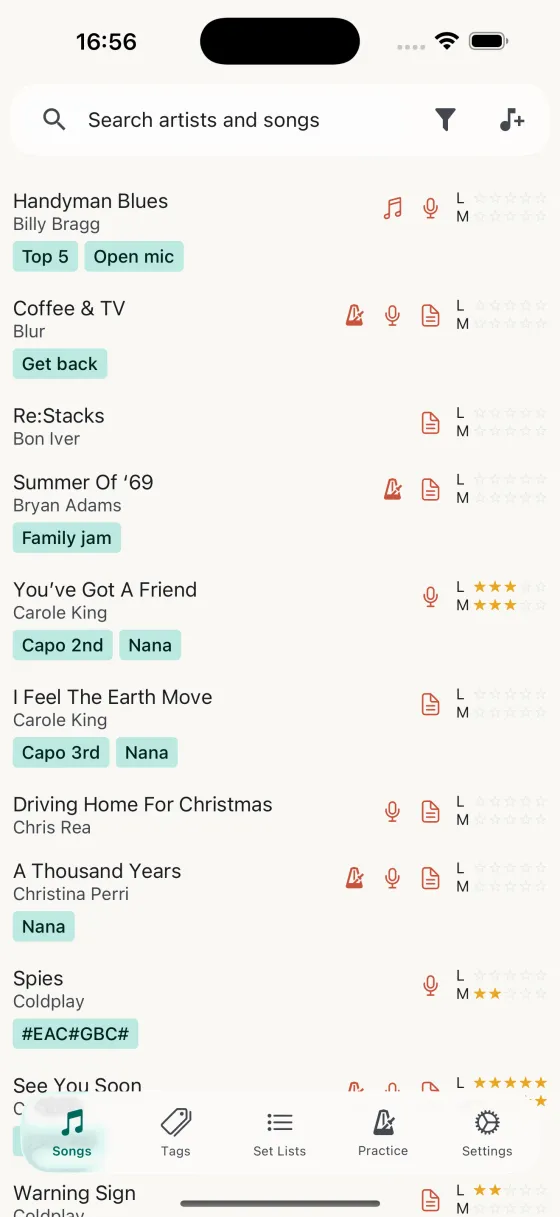
The Songs tab is your home base — every song in your library, laid out with its tags, familiarity ratings, and a quick indicator of which content fields it has (chords, lyrics, notes). Tap any row to open the song in the editor.
Searching and filtering
The search bar at the top matches song name and artist. Tap the filter icon to narrow the list by:
- ContentShow only songs that have chords, lyrics, or notes.
- TagsMulti-select any combination of tags to show only matching songs.
- TuningMulti-select any combination of tunings — standard, Drop D, DADGAD, Open G, and so on — to show only songs that match.
- CapoFilter by capo fret so you can group songs that share the same capo position for quicker set transitions.
- PracticeShow only songs with practice enabled.
When a filter is active a "Showing X of Y" banner appears so you always know how much of your library you're looking at.
Sorting
The sort control sits directly under the search bar and stays visible whether the filter panel is open or closed. Pick a sort key from the dropdown — artist, song name, familiarity, last updated, last practised, or last viewed. Each option opens in the direction that reads best for it: the three recency sorts start newest-first, artist and song name start A–Z, and familiarity starts with the songs you know least well. Flip the direction with the arrows next to the dropdown whenever you want the other end. Your sort is remembered on that device, so the list comes back the way you left it — including a direction you flipped by hand. It stays on that device rather than following you to your iPad.
The three recency sorts each answer a different question. Last updated is when the song itself last changed; last practised is your most recent practice log entry for it; last viewed is the last time you opened it from your library — the song list, a tag, or a set list. Opening a song counts as a view but not an edit, and running a set list or a practice session doesn't mark every song in it as viewed. Whichever recency sort you pick, each row shows that song's matching timestamp under the artist. Songs with nothing recorded yet sit at the bottom when sorting newest-first.
Swipe shortcuts
- Swipe leftDelete song — with a confirmation step so you can't delete by mistake.
- Swipe rightToggle practice on/off — pull a song into (or out of) your practice rotation without opening the editor.
- Pull downSync with iCloud — forces an immediate sync to pull fresh changes from your other devices.
Long-press menu
Long-press any song row for a contextual menu with the things you reach for most:
- Toggle tagAdd or remove a tag without opening the editor — a quick pass through the library adding "open-mic" or "wedding" to the right songs.
- Add to set listDrop the song straight into any set list you've built.
- DeleteSame confirmation-protected delete as the swipe action.
At-a-glance indicators
Each row packs a lot into a small space: the song title and artist on the left, with that song's timestamp under the artist whenever you're sorting by one of the recency options; tags underneath as chips you can tap to add that tag to the active filter; and on the right a metronome icon if practice is enabled, icons for each content type present, and compact L / M familiarity stars.
An empty list
If the list has nothing in it, Song Hive distinguishes between the two reasons that can happen. On a device that is still fetching your library from iCloud it says so — anything already on the device is shown, and the rest is on its way. Once the fetch finishes with nothing to add, it changes to the ordinary "no songs yet" prompt pointing you at the + button. A new iPhone signed into your iCloud account therefore never looks like an empty library while it is still filling up.
Adding a song
The + button in the top-right opens a blank song editor. Type the name and artist, rate familiarity, add tags, import chords or lyrics, and save.
Free-tier indicator
If you haven't unlocked unlimited songs yet, a small counter at the top shows how many songs you've added out of the free limit, with an Upgrade link that takes you to the one-time in-app purchase.