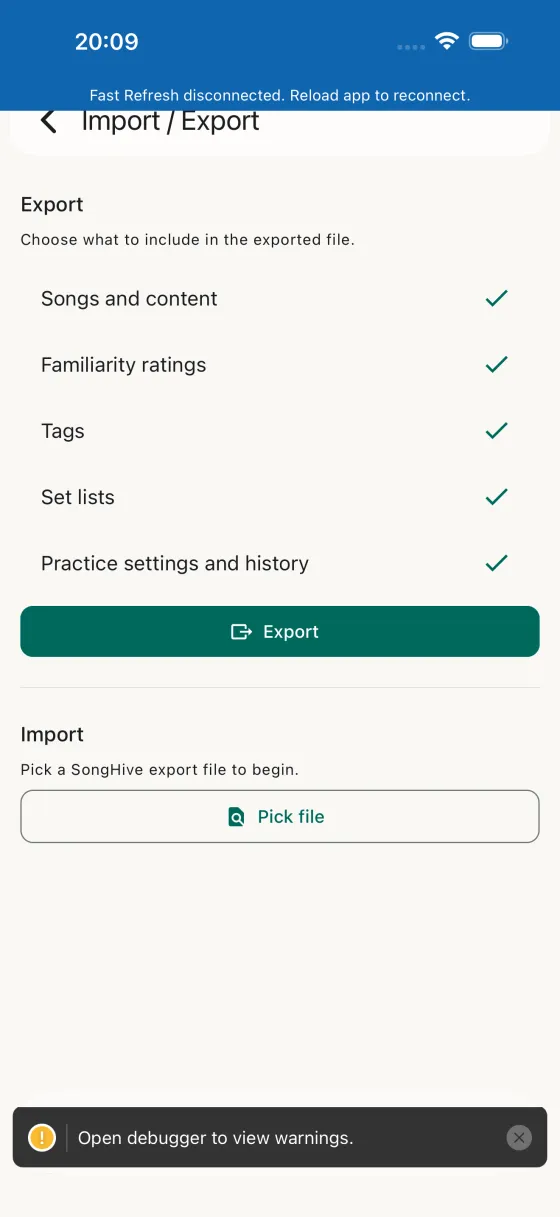
Pick what you back up
The Import / Export screen has an Export card and an Import card. Under Export, tick any combination of five sections:
- Songs and contentEvery song in your library with its chords, lyrics, and notes.
- Familiarity ratingsPer-song Lyrics and Music star ratings — the numbers that drive the practice schedule.
- TagsEvery tag in your library and its membership.
- Set listsEvery set list, its song order, and the per-song field selections.
- Practice settings and historySession size, practice schedule data, and the full practice log.
Tap Export and iOS's share sheet opens with a single .songhive file containing only the sections you ticked.
Merge or overwrite on import
Importing an export file is just as deliberate. Pick the file, Song Hive inspects it and shows you which sections it contains, and you choose how to bring them in:
- MergeAdd to your library without deleting anything. New songs get added; existing songs get the extra content filled in without overwriting your edits. Tags get unioned. Duplicate practice log entries are skipped; new ones are appended.
- OverwriteMake this device match the file. Songs and set lists not in the file are deleted locally. The practice log is wiped and re-seeded from the file. Use this to migrate a full library onto a fresh install.
Imported songs match by id first, then by name + artist, so a file exported from your iPad will still line up with the same songs on your iPhone.
Switching from BandHelper?
You don't have to retype your repertoire. BandHelper's website exports your song list as a spreadsheet file (Repertoire → Songs → Export); tap Import from BandHelper on the Import / Export screen, pick that file, and Song Hive shows you exactly what it found before it imports anything.
- SongsTitle, artist, tags, tempo, lyrics, chords and notes all land where you'd expect them — and if you kept capo or tuning in a BandHelper custom field, those fill the song's real capo and tuning, so the song list's filters find them straight away.
- Custom fieldsEvery custom field you defined in BandHelper becomes a Song Hive custom field with the same name, filled in for every song — and key, time signature, duration and starting pitch come along as fields of their own, so nothing you tracked gets left behind.
- No duplicatesSongs already in your library are matched by name and artist and updated in place, so you can import in stages.
On the free plan Song Hive tells you up front if the file holds more than the 15-song limit and lets you import the first batch, unlock unlimited songs and carry on, or cancel — nothing changes until you choose.
Why it's useful
A dedicated Import / Export flow with selectable sections unlocks real workflows:
- Switching apps — bring a BandHelper library across, custom fields and all, without retyping a single song.
- Lightweight migration — move just your tags and set lists to a bandmate's library without touching their songs.
- Periodic backups — export the full set as a manual safety net alongside your iCloud sync.
- Fresh start — export familiarity and practice history only, reinstall, and re-import to keep your schedule while starting from a clean library.
- Handing off — ship chords + lyrics only, with no ratings or practice data, so someone else can play your library without inheriting your scoring.
Alongside iCloud sync
Import and export don't replace iCloud sync — they complement it. iCloud keeps your devices in lockstep automatically; Import / Export gives you an explicit, file-in-hand copy that you control, for the times when you want something more deliberate than background replication.
Legacy files still work
Older Song Hive backups — before the section picker existed — are still accepted on import. Song Hive detects the legacy format automatically and pre-checks the songs, familiarity, and tags sections for you.