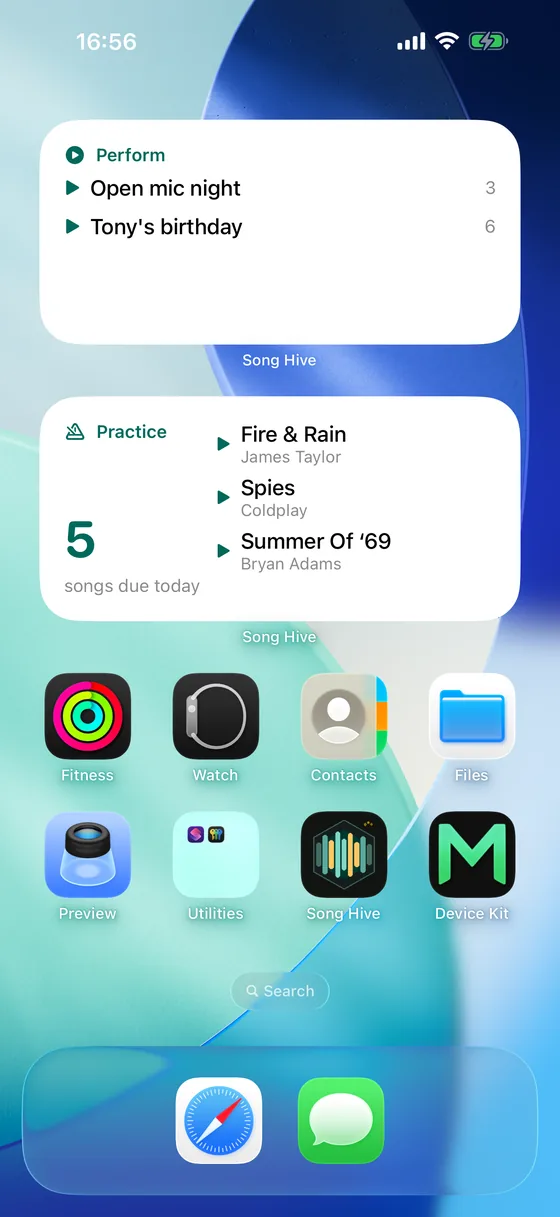
Perform: straight into the set
The Perform widget lists your set lists. Tap one and Song Hive opens it in full-screen Performance Mode, on the first song, ready to play — no opening the app, finding the Set Lists tab and pressing Perform on stage. On the medium and large sizes, tap anywhere else on the widget to open the Set Lists tab.
It comes in three sizes: small shows one set list, medium about three, large about six.
Choose which set lists it shows
Open a set list and turn on Show on widget. The widget then shows only the set lists you've pinned, in the same alphabetical order as the Set Lists screen. Pin nothing and it shows your first set lists instead. Pins belong to each device, so your iPad's widget can show the rehearsal sets while your iPhone's shows tonight's gig.
Practice: what's due today
The Practice widget shows how many songs are due today, and in the medium size the first few by name. The count is the same one the Practice tab shows, and it moves on at midnight by itself, without opening the app. Tap the widget to start today's practice session exactly as Start practice session builds it, or tap a song to start the session on that song. When nothing is due, it says so, and a tap opens the Practice tab.
Always current
Add a song, rename a set list, log some practice, or pin a set list, and the widgets update on their own. They follow your iPhone's light or dark appearance and use Song Hive's colours.
Adding a widget
Touch and hold an empty spot on your Home Screen, tap Edit, then Add Widget, and search for Song Hive. Pick Perform or Practice, choose a size, and tap Add Widget. Add both if you like.
One tap to play
Your set lists and today's practice, right on your Home Screen.