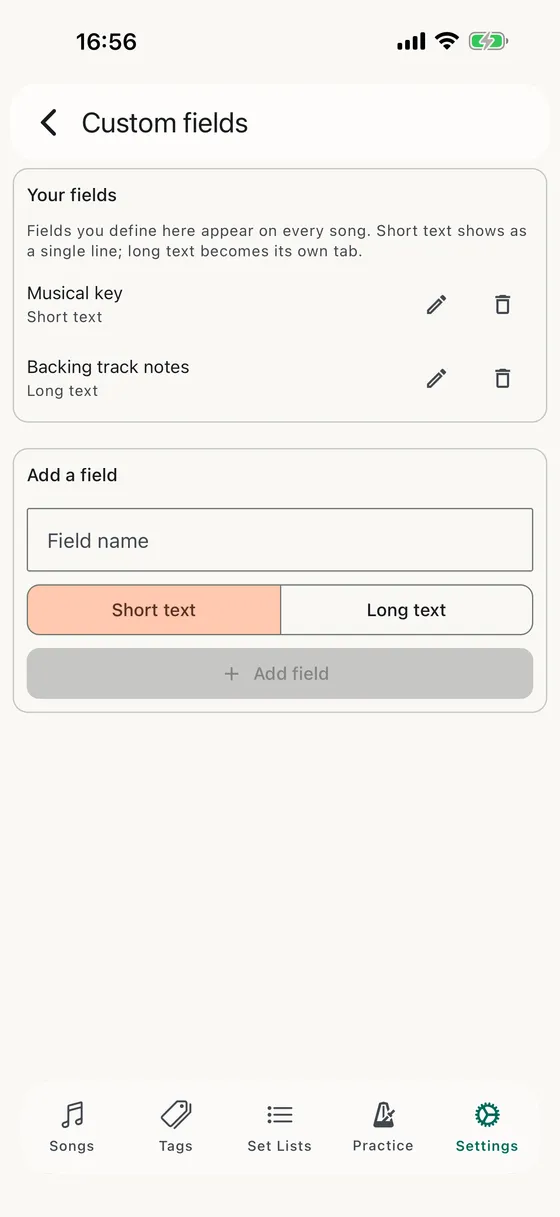
Custom Fields
Your fields
A field you define here appears on every song in your library, empty until you fill it in. That’s the point: a “Key” field is only useful if it’s in the same place on every song, not something you have to remember to add.
Two types
- Short textA single line, shown as its own input on the song editor just under the song name. Good for a key, a tuning note, a venue, a capo reminder — anything that fits on one line.
- Long textIts own tab alongside Chords, Lyrics and Notes, with the same pinch-to-zoom, full-screen and auto-scroll, a dot on the tab when it has content, and long-press to move it along the row. Good for backing-track notes, arrangement reminders, or a second set of lyrics.
Adding a field
Type a name, pick Short text or Long text, and tap Add field. New fields go to the bottom of the list, and short-text fields appear on the song editor in that same order.
Adding one while you’re editing a song
You don’t have to come here first. While a song is in edit mode there’s an Add custom fields button under the song name — tap it and Song Hive brings you straight to this screen. Add the field, then tap the back arrow: you’re back on the same song, still in edit mode, with everything you’d typed still there and the new field waiting to be filled in.
Renaming
Tap the pencil to rename a field. Renaming keeps every value already saved — Song Hive tracks the field itself, not what it’s called, so changing “Key” to “Musical key” is exactly the rename it looks like.
Deleting
Tap the bin to delete a field. Song Hive asks first, because deleting a field also deletes its values from every song — that can’t be undone. Deleting here is also how a long-text field’s tab goes away: unlike the three built-in tabs, a custom tab isn’t something you hide from the editor.
Sync and backups
Your field definitions and the values on each song both sync across your devices through iCloud, along with everything else. They’re also carried in the Import / Export backup file, so restoring a backup brings your fields back with the songs that use them.