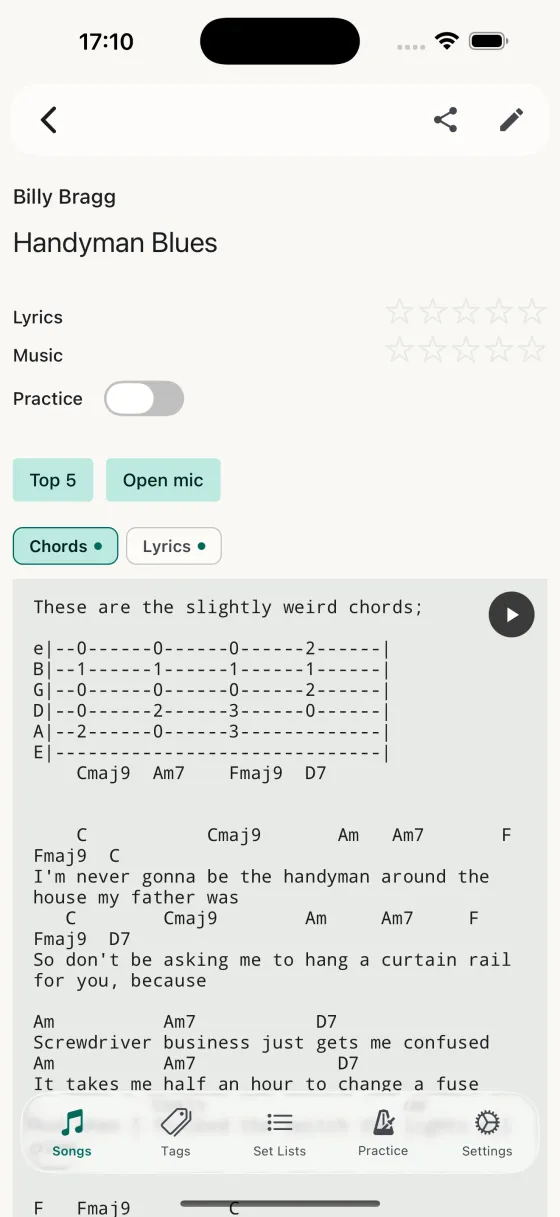
The song editor
Metadata
Song name, artist (with autocomplete from artists already in your library), and an optional URL — great for linking to the YouTube video you learned from. The URL field is single-line and has a clear-X like every other text field, plus a URL-appropriate keyboard. Every text field gets a floating clear-X while it has content — one tap to empty a field and start over.
Custom fields
Underneath the song name sit any short-text custom fields you’ve defined — your own single-line fields for whatever Song Hive doesn’t have a built-in field for, a musical key or a venue or a capo reminder. They show on every song, empty until you fill them in, and in view mode a field you’ve left empty simply isn’t drawn.
In edit mode there’s an Add custom fields button below them. It doesn’t define a field in place — it takes you to Custom Fields in Settings, where fields are managed for the whole library. Tap the back arrow when you’re done and you’re back on this song, still in edit mode, with your unsaved edits intact and the new field ready to fill in. More on custom fields →
Tuning & capo
Two structured fields for the two things every guitarist needs to know before they pick up the instrument.
Tuning uses a wheel picker with six string slots, low-to-high. Scroll each wheel to pick a note, or tap a preset — Standard, Drop D, Double Drop D, DADGAD, Open G, Open D, Open E, or Half-step down — to fill all six in one go.
Capo is a segmented chip row from None up the neck; tap the fret the capo belongs on.
When you import chords from a URL, Song Hive reads the tuning and capo out of the page and fills these fields in for you. Both values also drive the filter sheet on the song list, show up as read-only pills on the play page, and get used by the tuner on the Perform screen.
BPM
Below capo sits the BPM (beats-per-minute) field. Tap to expand it, then type a tempo by hand or tap Get BPM to look it up automatically from the song’s artist and title. The tempo shows as a chip and appears alongside the artist on the Perform screen.
The first time you look up a tempo with Get BPM, Song Hive asks whether you’d like BPM to be imported automatically for future songs — say yes and it fills the tempo in for you whenever a new song has an artist and title but no BPM yet. You can change your mind any time from Settings → BPM, where you can also turn the whole BPM feature off if you never use it.
Familiarity ratings
Two separate 0–5 star ratings — one for Lyrics, one for Music. Tap a star to set the rating, tap again or swipe to zero it. These numbers drive the spaced-repetition schedule, so the more honest you are, the smarter the schedule gets.
In edit mode, each row has a switch next to its label — flip it off to hide that axis for this song. Disabled rows disappear from the editor in view mode, from the practice-rating modal, and from the per-song history chart; any previous rating is kept in case you flip the switch back on later. If you want most of your songs to start with one axis off, change the global defaults under Song defaults.
Tags
Tap the chip of any existing tag to add it to the song; tap a tag on the song to remove it. Type in the tag field to create a new one. Tags are used by the song list filter, so a good tagging habit pays off fast.
Practice settings
Flip Enable practice on and the song appears on the Practice tab and contributes to practice sessions. Pick the practice focus field — chords, lyrics, or notes — and that's the tab the song opens to during a session.
Practice history chart
Once a song has some practice on it, a small chart appears showing your progress on a timeline — Lyrics dots on one line, Music dots on another, coloured by the rating you gave. Each dot represents a recall cycle rather than an individual session, so multiple plays inside the same cycle fold into a single point and the chart reads as a clean arc of how the song's settling. The chart anchors to the date you first enabled practice on the song, so a song you added years ago but only started practising last month reads cleanly from left to right instead of being crushed against the right edge.
The practice-rating modal (during a session, or from the Practice tab) has a date picker for back-dating a session you forgot to log — and if you back-date further than the chart goes, Song Hive slides the anchor back so the new session still lands on the timeline.
The content tabs
Folder tabs along the top of the text panel for Chords, Lyrics, and Notes — plus one for each long-text custom field you’ve defined. A custom tab carries the content dot, pinch-to-zoom, full-screen and auto-scroll of the built-in three, and long-press moves it left or right like any other tab; it can’t be hidden, because a custom field is removed by deleting it in Settings rather than by hiding its tab. The order and visibility of the three built-in tabs is controlled from Song Defaults — hide tabs you never use for a cleaner editor. Each tab floats its own compact Import button (with a small import icon) directly above the tab in the row, sized to match the tab width — so the import action is always one tap from the tab itself, without pushing the rest of the row down. The tab you pick lights up with an accent along its top and runs straight into the text below it, so it’s always clear which field you’re reading; the others sit back as outlines until you tap one.
- Pencil buttonEdit just this tab without putting the whole song into edit mode — handy for fixing a typo in the lyrics or a wrong chord. The pencil sits at the end of the tab row; tap it and only the text of the tab you’re on opens for typing, with Cancel and Save in its place. It works on an empty tab too. Saving keeps the old text in the song’s version history and syncs to your other devices, exactly as a full save does. Switch tabs or go back with unsaved text and Song Hive asks whether to save or discard it first; tap the header’s pencil instead and your text comes with you into the full editor.
- Pinch in/outAdjust font size from 8pt to 40pt. A floating indicator shows the size as you pinch; Song Hive remembers the size per song.
- Play buttonStart auto-scroll. The speed selector goes from 0.25x to 4x in 0.25 increments; Song Hive remembers the speed per song. When the active tab is being driven by time-synced lyrics, the speed readout swaps to Synced with a clock icon and the +/- buttons hide — the song's own timing is what's driving the page.
- Chord searchOn the Chords tab, tap the search icon to pull chord tabs with ratings — Ultimate Guitar's Official tabs are surfaced as their own labelled type and sorted to the top. Pick one and Song Hive imports it with one tap. If an Official tab sits behind UG's paywall, Song Hive spots the redirect quickly and offers to save the tab's link to the chords field instead of leaving you waiting.
- Lyrics searchOn the Lyrics tab, tap the search icon to pull lyrics from LRCLIB and other sources. Imported plain lyrics come through with proper verse breaks rather than as one concatenated block, derived from the synced-lyrics timing data.
- Import from fileOn the Lyrics tab, tap the file icon at the end of the tab row to pick a text (.txt), Word (.docx) or PDF file — from Files, iCloud Drive or anywhere the document picker reaches — and its text lands in the Lyrics field with the blank lines between verses and choruses intact. If the song already has lyrics, Song Hive asks whether to Replace them, Append the file's text after them, or Cancel. A scanned PDF is a picture of the page rather than text, so there's nothing to read — Song Hive tells you so rather than leaving the field empty. While you're editing, the import waits for Save like any other change; when you're just viewing a song, it saves straight away.
Leading URL pill in the chord field
If a chord field starts with a URL — most commonly a saved Ultimate Guitar Official link that we couldn't import directly — Song Hive replaces the raw URL with a tappable pill carrying a link icon and a label that names where it points (UG Official, Ultimate Guitar, or Open link). One tap opens the link in your browser; switch back and you're still on the same song. The pill shows up wherever the chord field is rendered: inline in the editor, in the expanded chord-modal, and on the play and Perform screens.
Synced lyrics
Songs with time-stamped lyrics from LRCLIB show a small clock icon next to the Lyrics tab label, so you can tell at a glance which songs in your library are ready for synced auto-scroll. Songs that have lyrics but no timing data get a small Sync pill floating above the Lyrics tab — tap it and Song Hive fetches the timing in place, leaving any manual edits to the lyric text untouched. More on synced auto-scroll →
Version history
Every edit creates a version stamp — manual edits, CloudKit pulls, and imports all appear in the song's history. Expand a past version to see what changed and, if needed, restore it.
Saving and cancelling
Changes are tracked as you type. If you try to leave with unsaved edits, Song Hive asks before discarding. Saving pushes the song to iCloud in the background — you'll see it appear in the Sync Log without ever having to wait.
The same goes for a single tab edited with its own pencil: it saves on its own, and while you’re typing, an incoming iCloud sync waits rather than replacing your text. When you save, only that tab changes — anything the sync brought in for the rest of the song is kept.