Perform view
What it's for
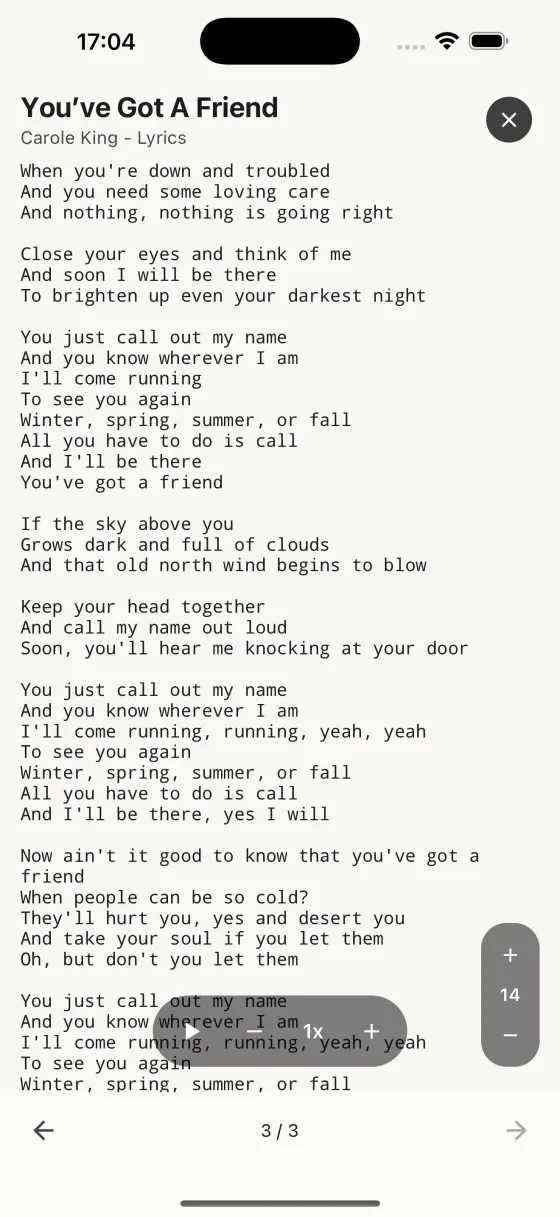
Perform is a distraction-free, full-screen view that cycles through a list of songs in order. It's used in three places: from a set list (tap Perform), from a set list with practice rating enabled (tap Practice), and from the Practice tab (tap Start practice session).
Gestures
- Horizontal swipeMove between songs in the order of the set. Or use the ← → buttons at the bottom.
- Pinch in/outAdjust font size — 8pt to 40pt. The size sticks per song, so every time you open it you get the same size.
- Play buttonStart auto-scroll. Tune the speed from 0.25x to 4x with the speed stepper. Speed sticks per song. When the song has time-synced lyrics driving the active tab, the speed readout swaps to Synced with a clock icon and the +/- buttons hide — the song's own timing is what's controlling the page.
- Tuning-fork buttonOpen the tuner — mic-driven pitch detection targeting the current song's tuning. Tap a string to focus it, or let auto-detect pick the nearest note.
- Star buttonPractice mode only. Opens a modal to rate Lyrics and Music familiarity — logs the session and updates the schedule.
- Pencil buttonFix the text on screen — the pencil just left of the X opens the chords, lyrics or notes you’re looking at for typing, still full screen. Save keeps the change, with the old text in the song’s version history, and syncs it to your other devices; Cancel leaves it as it was. While you’re editing, the page stays put — no swiping on to the next song — and the X comes back once you’ve saved or cancelled. If the same song is open for editing in the song editor, the pencil stays hidden, so the two edits can’t overwrite each other.
- X buttonExit back to the set list or Practice tab you launched from.
Position counter
Top of the screen shows "3 / 12" — your position in the set. You always know what's next and how much longer the set has to run.
Title bar
Each song shows its name, artist, and the field being displayed (Chords / Lyrics / Notes). In practice mode, tap the title bar to jump into the full editor — great for mid-practice adjustments.
Tuning & capo pills
If the song has a tuning or a capo set in the editor, they appear as small coloured pills above the content — a glance tells you whether to re-tune or reposition the capo before you start. The tuner button (tuning-fork icon) in the header launches a mic-driven tuner targeting the song's tuning; grant mic permission on first use and Song Hive shows a live needle in cents, flat / in-tune / sharp, for each of the six strings. Tap a specific string to lock the tuner to it, or let auto-detect follow whichever string you pluck.
When the tuner can't hear anything, it tells you why rather than waiting silently. If it has been listening for a few seconds without picking up a note it says so, and suggests the likely causes first — play a string, hold the phone closer, check nothing else is using the microphone. If microphone access was declined it asks for it; if access is switched off for Song Hive it says so and offers a button straight to Settings; and if the device reports no microphone available at all, it names that too, so a tuner that cannot work is never mistaken for one that simply isn't hearing you.
Split view
Tap a second field chip in the title bar to show two fields at once — say, Chords above and Lyrics below. Drag the divider up or down to set the balance. The split ratio sticks while you swipe between songs in the set, so once you've dialled it in for a rehearsal or a show it stays that way until you adjust it. Songs that have no content for a given field simply hide the split controls for that field.
Auto-scroll behaviour
Auto-scroll is smooth and continuous. Scroll manually with your finger any time to take over; let go, and auto-scroll picks up exactly where you stopped, not where it was. Hitting the end of the song doesn't advance to the next one — that's always on purpose, via a swipe or the arrow button.
Each play starts with a short pre-roll: the first line stays at the top of the screen while the virtual playhead descends towards the page midpoint, so you can read or sing the opening line before it moves. The play button pulses while the pre-roll's running so it's obvious scroll is about to kick in. At the end of the song, the last line lands at the page midpoint rather than the bottom.
When the song has time-synced lyrics — pulled from LRCLIB and stored on the song — auto-scroll locks to the song's actual timing instead of using a fixed speed: each lyric line hits the page midpoint at the moment it's sung. Chord sheets that line up cleanly against the synced lyrics scroll the same way; chord sheets that don't (repeated choruses written once, URL-only chord fields) quietly fall back to fixed-speed scroll with no error. More on synced auto-scroll →
URL pill in the chord field
If a song's chord field is a saved URL — most often an Ultimate Guitar Official tab that sat behind the paywall and couldn't be imported directly — the URL renders as a tappable pill at the top of the chord content, labelled UG Official, Ultimate Guitar, or Open link. One tap opens it in your browser; switch back and you're still on the same song in the set.
Screen awake
When Keep screen awake is enabled in Settings (and it's on by default), the screen won't dim or lock during a Perform session — crucial on stage.