The Practice tab
Practice Reminders link
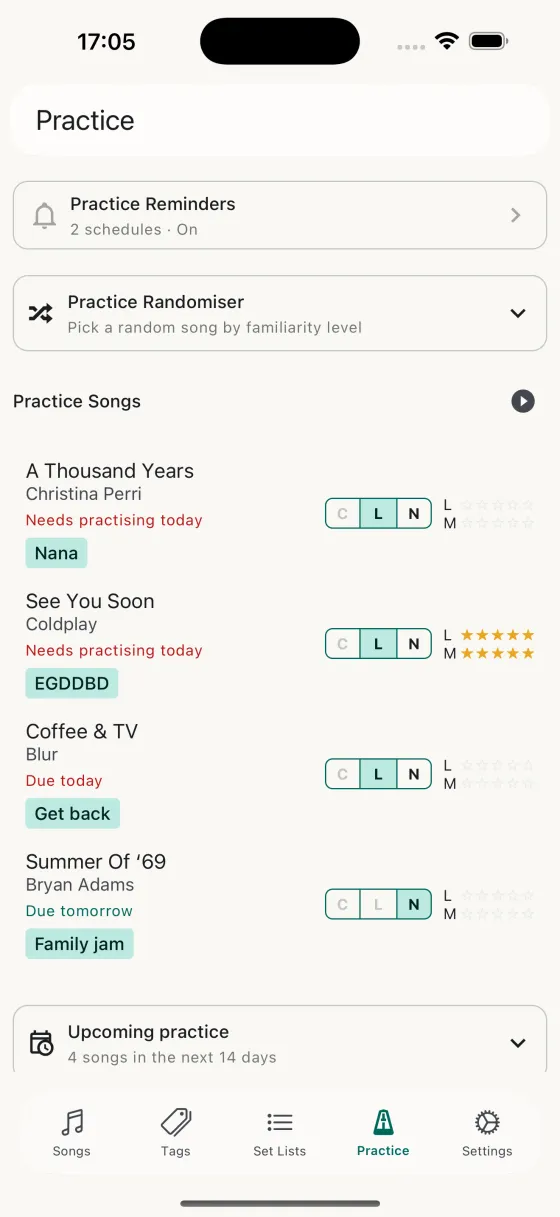
The top row is a shortcut into Practice Reminders. The subtitle tells you at a glance whether reminders are on and how many schedules you've set up.
The Practice Randomiser
Tap to expand. Pick a familiarity level from 0 to 5 — 0 is "surprise me with something I barely know", 5 is "give me something I love to play" — and tap Go. Song Hive picks a random song at that level and opens it. This shortcut ignores the spaced-repetition schedule; it's for when you want quick variety.
Practice Songs list
Every song with practice enabled, ordered by when it's next due. Overdue songs show their due date in red; on-schedule songs show it in the app's primary colour. The field chip on each row lets you swap the practice focus field (Chords / Lyrics / Notes) without opening the song.
- Swipe leftTurn practice off for that song — it stays in your library but drops off the Practice tab.
- Tap rowOpen the song in the editor.
- Field chipTap the C / L / N chips to switch which field this song opens to during practice.
Start practice session
The play-circle button at the top of the Practice Songs section launches a full-screen practice session. Song Hive picks the songs that are due, fills in extras from your wider library to reach your preferred session size, and sweeps you through them with the familiarity-rating modal after each one.
The rating modal includes a date picker so you can log practice you did earlier. Back-date a session if you forgot to open the app after rehearsal; if you pick a date earlier than the song's practice start, Song Hive quietly rolls the start date back to match so the history chart still makes sense.
The Practice widget on your Home Screen shows the same due-today count and starts the same session in one tap, without opening the app first.
The forecast calendar
A month-view calendar shows exactly when each song is next due. Tap a date to see what's scheduled; tap a song to open it. Scroll forward and back to see the weeks ahead or look back at what you've completed.
Practice log
The bottom row is a shortcut into the Practice log — every song you've completed in a session, grouped by day, newest first.