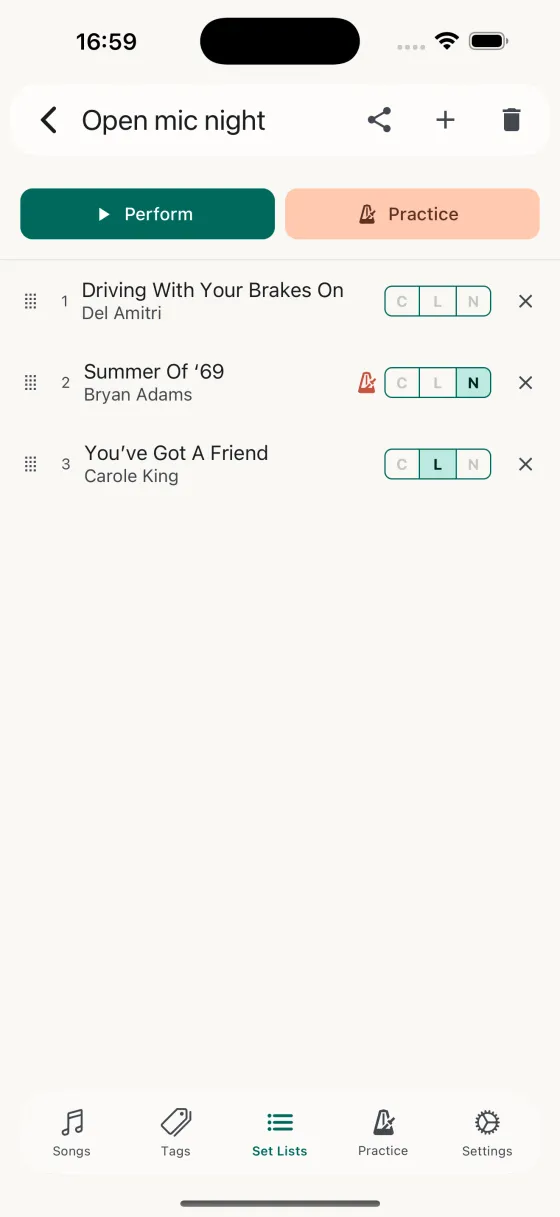
A set list open for editing
Perform or Practice
Two buttons at the top of the set list:
- PerformLaunches the full-screen Perform view — swipe between songs in order, no menus, no distractions.
- PracticeSame full-screen view, but each song shows a star button — rate your familiarity and log the practice as you rehearse the set end-to-end.
Show on widget
Below the two buttons, the Show on widget switch pins this set list to the Perform widget on your Home Screen. Tap a pinned set list on the widget and it opens straight into Perform. With nothing pinned, the widget shows your first set lists alphabetically. Pins are kept per device and don't sync, because each device has its own Home Screen.
Song rows
Each row shows a position number, the song name and artist, a field chip (C / L / N) for the field that'll be displayed in Perform mode, and a close button to remove the song from the set.
- Swipe leftRemove from set list — the song stays in your library.
- Swipe rightToggle practice on/off — handy when you want to pull a whole gig's worth of songs into practice mode for a rehearsal week.
- Long-press dragReorder the set. The row lifts visually while you drag.
- Tap rowOpen the song in the editor.
- Field chipCycle through chords / lyrics / notes for this song in this set — whatever the song has available.
Adding songs
The + button in the header opens a searchable picker showing only songs that aren't already in this set. Tap a song and it's added to the end of the list — Song Hive automatically picks the first populated field (chords, then lyrics, then notes) so Perform mode opens straight to playable content. Tap the field chip on the row if you want to cycle it, and drag the row if you want to reorder.
Sharing
Tap the share icon to send the set as a .songhive file over AirDrop, iMessage, or any iOS share target. The file contains every song, the chosen content for each song, and the running order. On the receiving side, Song Hive merges it into the library without overwriting anything — a summary shows exactly what was added or updated.