The Settings tab
Theme
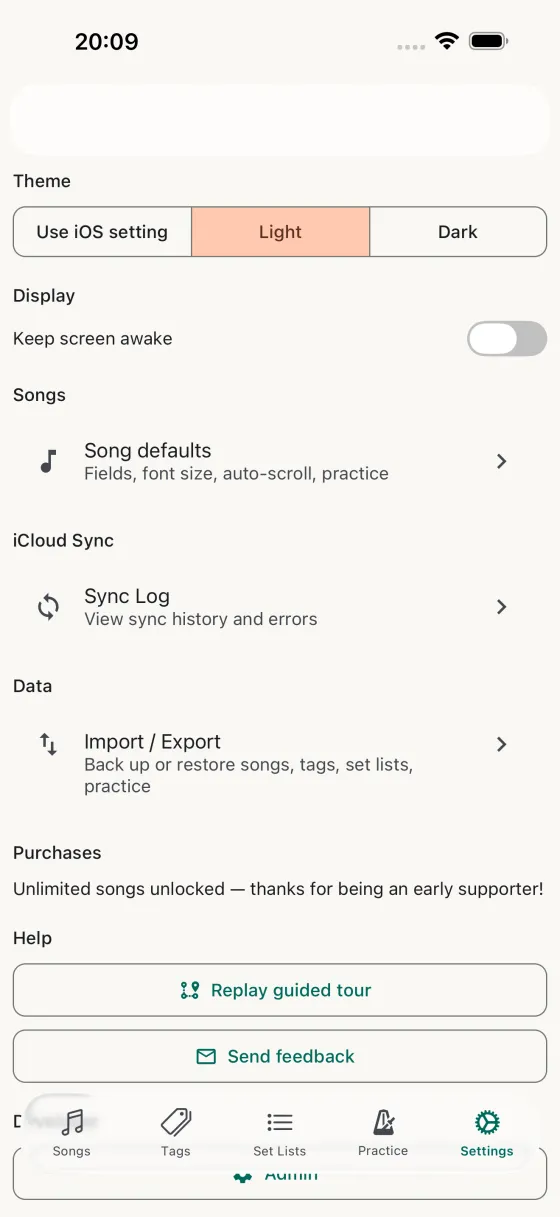
Three options — Use iOS setting, Light, Dark. The first respects iOS's system-wide Dark Mode so Song Hive flips to light in the morning and dark in the evening automatically. The other two pin it to a specific mode.
Display
Keep screen awake — controls whether the screen is allowed to dim or lock while you're playing. On by default, because nothing kills a live performance like the screen going to sleep mid-chorus.
Songs → Song defaults
Opens Song Defaults, where you set the default font size, auto-scroll speed, session size, and which tabs (Chords / Lyrics / Notes) are visible by default on every new song.
Songs → Custom fields
Opens Custom Fields, where you define your own fields — short text for a single line, long text for a tab of its own. A field defined here appears on every song in your library. It’s also where the Add custom fields button on the song editor brings you — arrive that way and the back arrow returns you to the song you were editing rather than to Settings.
BPM
Enable BPM is the master switch for the tempo feature. On by default; turn it off and the BPM field disappears from the song editor and the tempo stops showing on the Perform screen — handy if you never track tempo. Auto-import BPM, shown just below, looks a song’s tempo up automatically whenever it has an artist and title but no BPM yet, so you don’t have to tap Get BPM on every song. Song Hive offers to switch this on the first time you look up a tempo with Get BPM, and both switches sync across your devices via iCloud.
iCloud Sync → Sync Log
Opens the Sync Log — every iCloud sync operation with full details on what was pulled, pushed, or skipped.
Data → Import / Export
Opens the Import / Export sub-screen, where you pick which sections to back up (songs, familiarity, tags, set lists, practice) and choose merge or overwrite on import.
Purchases
If you've already unlocked unlimited songs, a confirmation sits here (with a thank-you for early supporters who got unlimited built in). If not, the Restore Purchases button checks your Apple ID's purchase history — useful after reinstalling or switching devices.
Language
Song Hive is available in English, Italian, German, Spanish, French, Japanese, Simplified Chinese, and Brazilian Portuguese. The app follows your device locale automatically. To use a different language within Song Hive specifically, open the iOS Settings app, scroll to Song Hive, and tap Language.
Help
Replay guided tour takes you back through the first-run tour — the series of highlighted tooltips that introduce the key features. Send feedback opens Mail with a pre-filled subject line addressed to the developer — the fastest way to flag a bug, request a feature, or just say hi.
About
User Guide opens the per-screen reference at songhive.net/screens — every button, every swipe, every shortcut. Release Notes opens the version history at songhive.net/release-notes.html so you can see exactly what changed in your current version and what's coming.
Version
The version number is shown at the bottom. Useful when sending a bug report. On the first launch of a new version, a What’s New popup summarises what changed — dismiss it with “Got it” and it won’t return until the next release.